
The Graphical User Interface (GUI) tools for Linux have evolved significantly over the years. You can find some of the best file managers for Linux as GUI tools.
But when it comes to the command line, most Linux users resort to the ls command to look for files present on the system.
Few users are aware of TUI -based file explorers that make it more convenient to browse files in a terminal.
Let’s take a look at some neat terminal-based file management utilities that work just as easily as a GUI file manager. I have selected a couple of minimal and feature-rich tools, so feel free to pick what works best for you.
📋
This list is in no particular order.
1. Vifm
Vifm or Vi-file manager is a terminal-focused utility which is one of the best file managers for Linux. As the name suggests, Vifm provides a Vim-like environment for managing objects within the file system.
Vifm File Manager
If you are familiar with Vi or Vim, this file manager will make you feel right at home with the keyboard shortcuts. But, you can use it for day to day purpose, even if you are not a Vi expert.
Key features of Vifm:
- Vim-like user mappings
- Directory tree comparison
- Operation undoing/redoing/back grounding
- FUSE file systems support
- Color schemes, which can also be applied to specific subtrees
- Advanced file filtering and renaming capabilities
- Named bookmarks (tags)
- Sessions
- Built-in integration with GNU Screen and tmux
Installing Vifm
Since it is a popular file manager, it is available in the default repository of many Linux distributions. On Ubuntu, you can install Vifm using:
sudo apt install vifmVifm, when invoked from the terminal, opens in the current working directory using the following command:
vifm2. Ranger
Another command-line based popular file manager, inspired by Vim, is Ranger. It is a minimalistic file manager, with a similar interface. Ranger has a file launcher, called Rifle, that can open files based on its type.
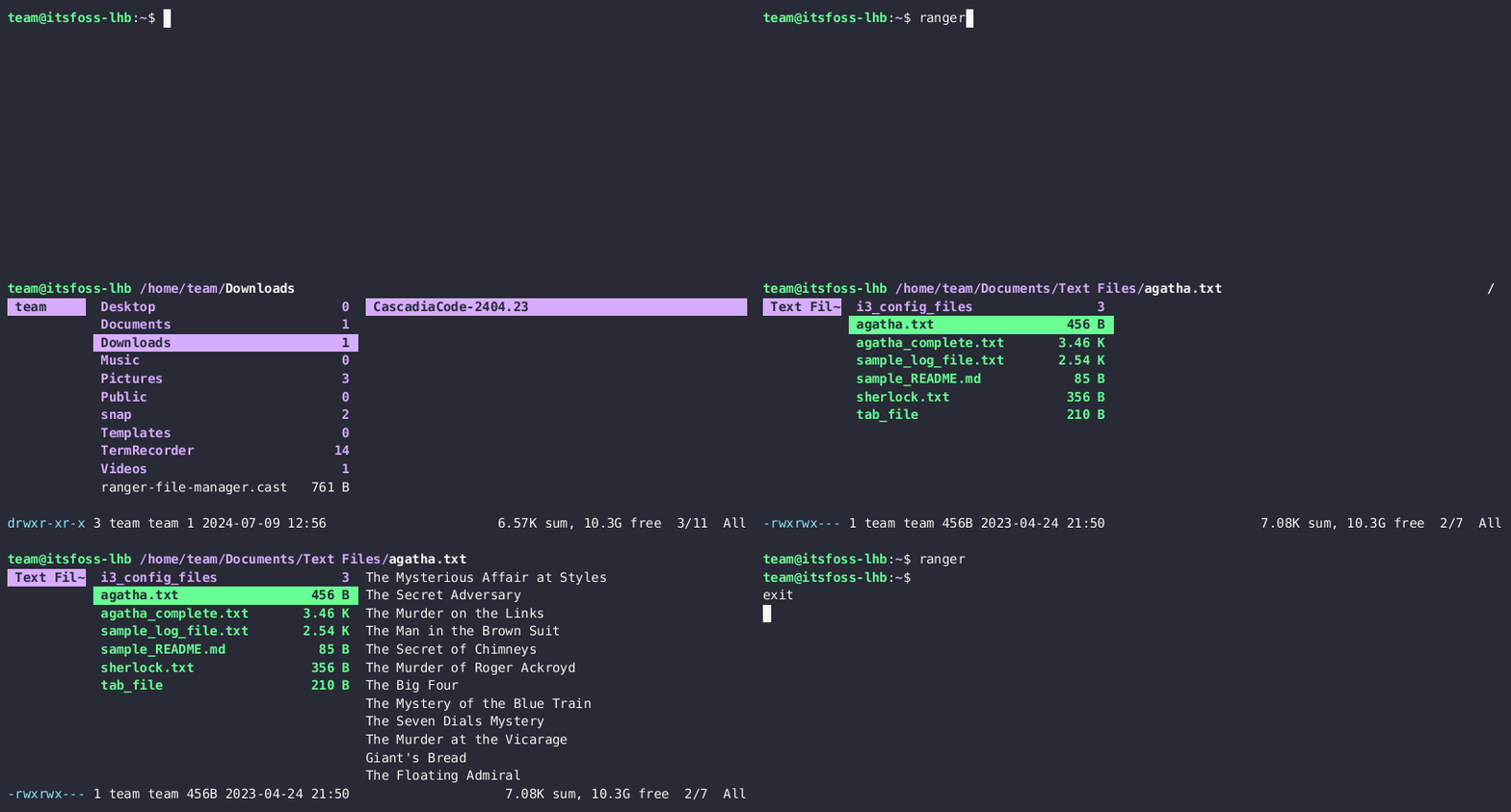
Ranger File Manager
Apart from that, it offers a multi-pane view mode and all the essentials.
Key features of Ranger:
- UTF-8 Support (if your Python copy supports it)
- Multi-column display
- Preview of the selected file/directory
- Common file operations (create/chmod/copy/delete/…)
- Renaming multiple files at once
- VIM-like console and hotkeys
- Automatically determine file types and run them with correct programs
- Change the directory of your shell after exiting ranger
- Tabs, bookmarks, mouse support, and more
Install Ranger
Ranger is available to install on the default repos of Ubuntu. Open a terminal and run the following command to get it installed:
sudo apt install ranger3. Midnight Commander
GNU Midnight Commander is a feature-rich file manager, that can do most of the important file management operations in a full-screen text-mode.
It also comes with an internal viewer and editor.
Midnight Commander
Key features of GNU Midnight Commander:
- Built-in virtual file system: manipulate remote file systems, browse archive files
- Mouse support on most terminal emulators for X Window System as well as on the Linux console
- Text and hex editors available
- Hotlist allows you to keep a list of common visited locations
- Command completion with Alt-Tab shortcut
- Subshell support
- Linux file recovery
- Built-in editor supports syntax highlighting and external actions, such as spell checking and formatting
- FTP proxy support
Install GNU Midnight Commander
Midnight Commander uses the package name mc in most system. So, in a terminal, run the command below to get it installed:
sudo apt install mc4. Superfile
Superfile is a modern terminal file manager written in Go. It offers an eye candy user interface with powerful multi panel workflow.
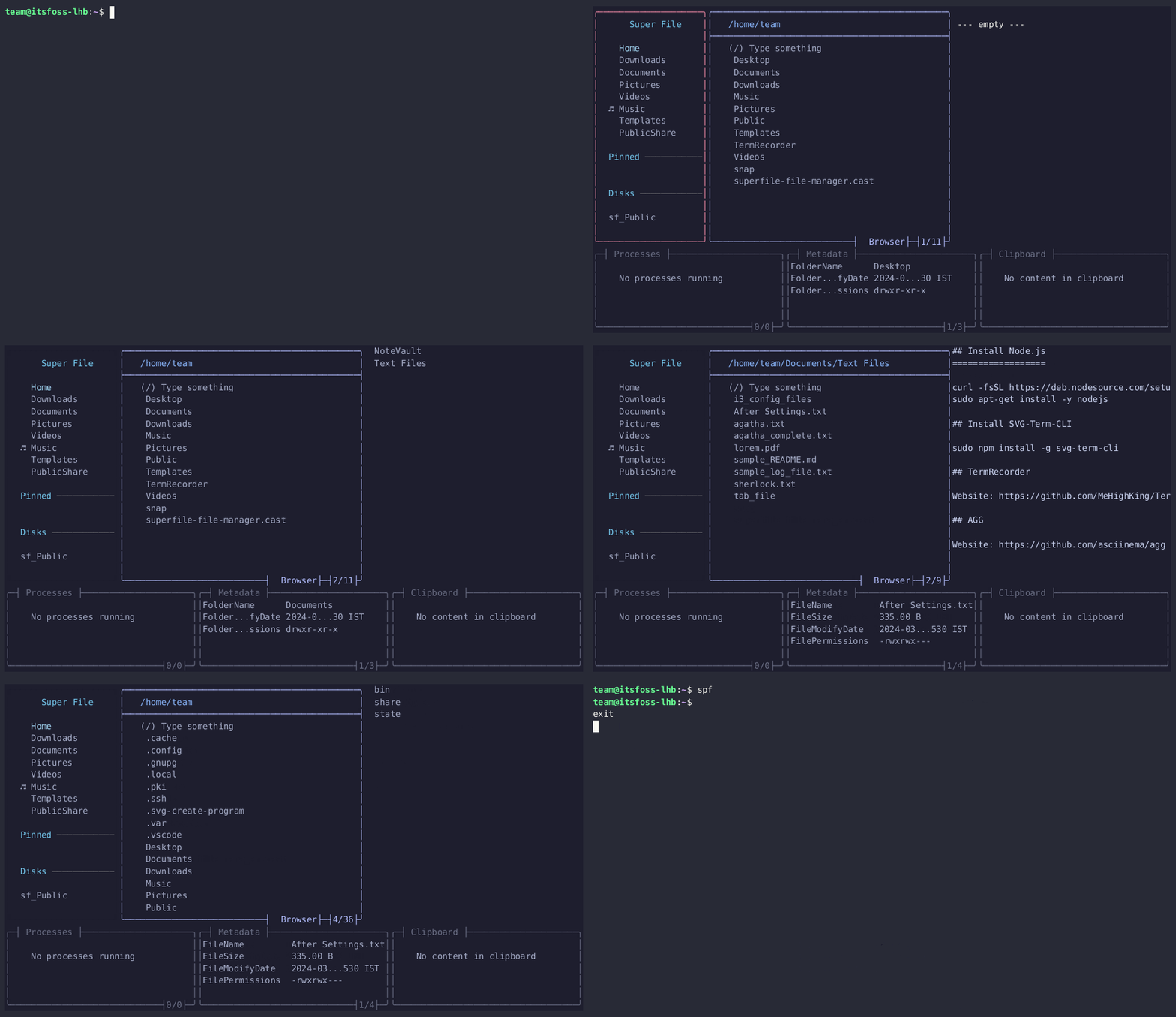
Superfile File Manager
Key features of Superfile:
- Beautiful user interface
- Fully customizable from basic hotkey to theming and styling
- Almost complete functions of a file manager are available
- Plugin support
- Linux and macOS support, with a possible Windows installation
- Sudo and Local installation
- Offers file preview
Install Superfile
Before installing Superfile, make sure you have any Nerd Fonts installed. If not, install any Nerd Font of your choice.
Now, for all Linux users, run the command below to install Superfile.
bash -c "$(curl -sLo- https://superfile.netlify.app/install.sh)"Additionally, there are packages for Arch Linux in official repositories:
sudo pacman -S superfileYou can check additional installation options on the official documentation.
Once installed, you may need to reopen your terminal. To start Superfile, use the command:
spf5. xplr
xplr is an intuitive and hackable file explorer with a focus on increased productivity by utilizing the command-line file-system utilities.
xplr file explorer working in a terminal
This is not a file manager in the sense that you can do what a GUI file manager lets you do. But, it works more as a file explorer, offering some powerful tools.
Key features of xplr:
- Fast and minimal
- Customizable layouts with built-in panels
- Switchable recover mode that saves you from doing unwanted things when rushing
- Embedded LuaJIT for portability and extensibility
- Custom file properties with custom colors can be displayed in the table
- Plugins and integrations
- Different quit options
- Custom file properties with custom colors can be displayed in the table
Install xplr
If you are an Arch Linux user, use the following command to install it:
sudo pacman -S xplrAnother way to install is by using the Crates. Make sure you have rust toolchain, gcc, and make packages ready. And, then run:
cargo install --locked --force xplrFor all other users, you can always download the compiled binaries from the official releases page.
6. Yazi
Yazi is a rust-based file manager for your terminal, which is exceptionally fast. It is based on non-blocking async I/O and aims to provide an efficient, user-friendly, and customizable file management experience.
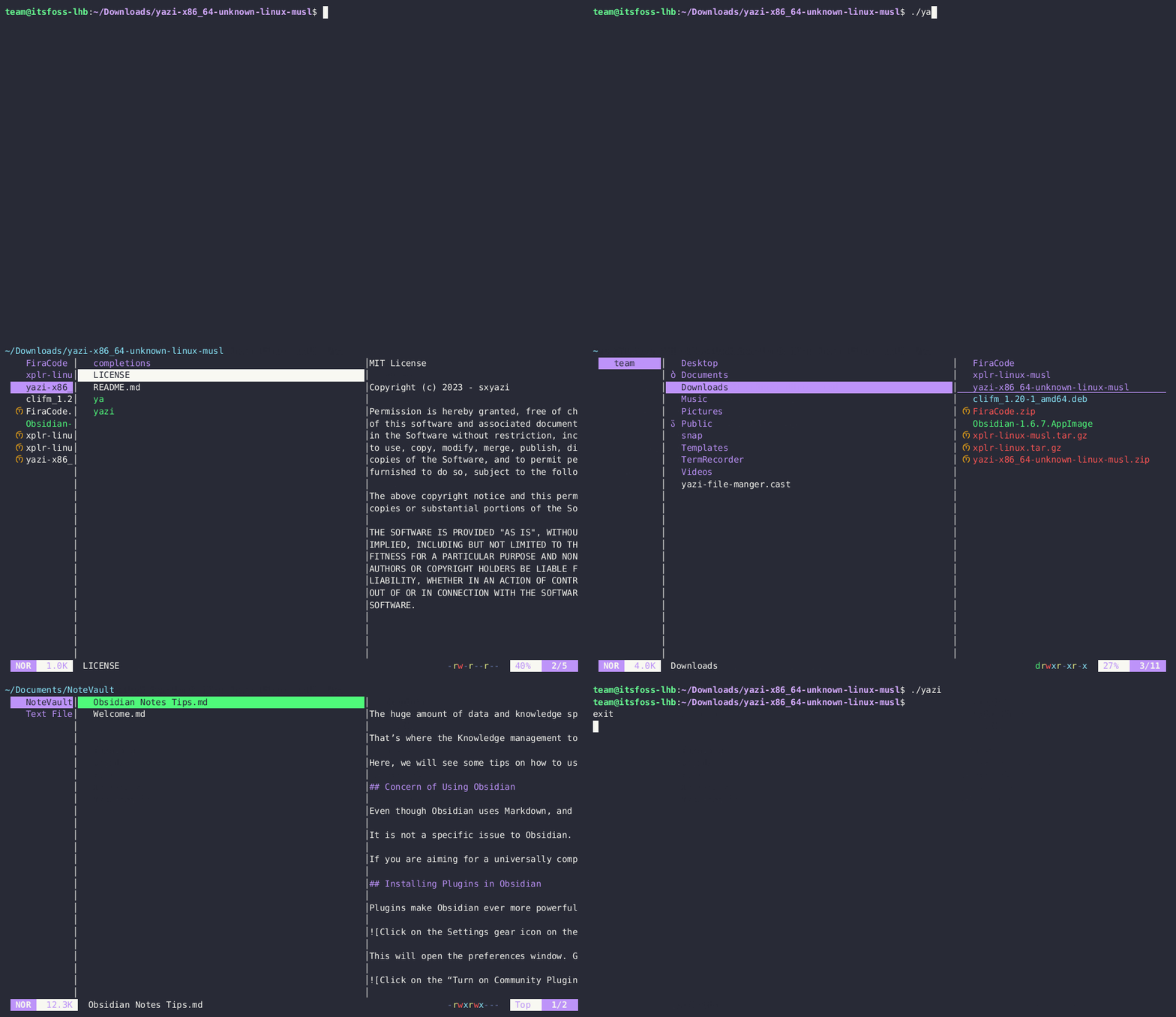
Yazi File Manager
Key features of Yazi:
- Full Asynchronous Support
- Powerful Async Task Scheduling and Management
- Built-in Support for Multiple Image Protocols
- Built-in Code Highlighting and Image Decoding
- Plugin system with package manager for plugins and themes management
- Multi-tab with scrollable preview
- Integration with ripgrep, fd, fzf, and zoxide
- Data Distribution Service
Install Yazi
For Arch Linux, use:
sudo pacman -S yazi ffmpegthumbnailer p7zip jq poppler fd ripgrep fzf zoxide imagemagickFor all other distributions, download the compiled binary from the official release page.
More installation methods including rust cargo are explained in the official documentation of the project.
Suggested Read 📖
7. CliFM
CliFM is a simple terminal file manager, that works a bit differently from the other tools. Instead of a Terminal User Interface (TUI), CliFM, as in the name, follows a CLI design principle.
CliFM File Manager basic working.
Key features of CliFM:
- Can run on the kernel built-in console, SSH, or any other remote session.
- Wide terminal support (even 8 colors and no Unicode support terminals).
- Extended color codes for file-types and -extensions.
- Supports operations like bookmarks, tags, filters, etc.
- Up to 8 workspaces.
- File permissions/ownership editor via the
pcandoccommands respectively. - Autosuggestions, syntax highlighting, TAB completion, etc. are available.
- A Stealth mode, also known as incognito or private mode.
Install CliFM
Arch Linux users can install CliFM from AUR.
There are binary packages for major Linux distributions like Arch, Debian, Ubuntu, etc. You can also download the binary from the openSUSE build system.
8. nnn
n3 or nnn is a full-featured terminal file manager, that is nearly 0-config. While this minimalism does not affect the capabilities of this utility.
nnn file manager working
Key features of nnn:
- POSIX-compliant, follows Linux kernel coding style
- Typically needs less than 3.5 MB resident memory
- Minimal library deps, easy to compile
- Touch enabled, handheld-friendly shortcuts
- Basic support for screen readers and braille displays
- Run plugins and custom commands with hotkeys
- Launch apps, run commands, spawn a shell, etc
Install nnn
nnn is available in the repos of most distribution. In Ubuntu, run the following command to install it:
sudo apt install nnnYou can also get statically linked binary from the releases page of the project.
9. lfm
lfm or Last File Manager is a UNIX console file manager written in Python. It offers a two-pane interface by default with a neat dark color scheme.
lfm file manager
Key features of lfm:
- Support tabs, file filters, bookmarks, history, etc
- VFS for compressed files
- Direct integration of find/grep, df and other tools
- Color files by extension
- Fully customizable themes (colors) and key bindings
- Support for filenames with wide chars
Install lfm
lfm is available in the default repositories of most major Linux distributions. Ubuntu users can install it using the command:
sudo apt install lfm🚧
Ensure the version of lfm is 3 or higher in the repository. You also need Python 3.4+ to run this.
10. lf
lf is a simple file manager, heavily inspired from Ranger file manager. Its specialty is being a straightforward and minimal utility.
lf file manager
Key features of lf:
- Cross-platform
- Single binary without any runtime dependencies
- Fast startup and low memory footprint
- Asynchronous IO operations to avoid UI locking
- Server/client architecture and remote commands to manage multiple instances
- Extendable and configurable with shell commands
- Customizable keybindings
Install lf
lf is available in the default repositories of major Linux distribution. For Ubuntu and Debian-based, install it using:
sudo apt install lfThere are prebuilt binaries available in the project releases page for all distributions.
11. Ytree
Ytree is a classic-looking file manager for browsing filesystem and archives.
Ytree file manager
Key features of Ytree:
- Supports external programs to view/edit files
- An internal hex viewer and editor are available
- Configurable and supports different architectures
Install Ytree
On Ubuntu, you can install it from the official repository.
sudo apt install ytreeArch Linux users can find it in AUR.
Suggested Read 📖
Wrapping Up
Terminal-based file managers help you efficiently work with files without worrying about the performance, regardless of what utility you choose from the list.
If you want simple operations, and just explore the filesystem, you can go with any of the choices. But, if you are looking for a performance-focused, easy-to-use, and feature-rich program, I suggest superfile and yazi. Just two of my personal picks.
You should give all of them a try if one doesn’t work good enough for your use-case.
💬 What is your favorite on the list? Anything I missed here? Do share your thoughts in the comments below.