There are many ways to customize Firefox, such as adding features to Firefox with add-ons and customizing the New Tab page. You can also customize Firefox controls, buttons and toolbars. Do you miss something you use a lot? The Firefox toolbar is easy to customize. Is there something you don’t use all the time? Try adding it to the overflow menu. We’ll show you how.
Note: These instructions apply to Firefox desktop (Windows, macOS, Linux). If you’re using Firefox for Android or iOS, see Customize Firefox Home on iOS or Customize the Firefox home screen for Android. Also, Menu options may look different on Linux with certain desktop environments.
You can rearrange the items that appear in the overflow menu or on your toolbar.
-
Click the menu button
 in the top-right corner, click, and choose the option.
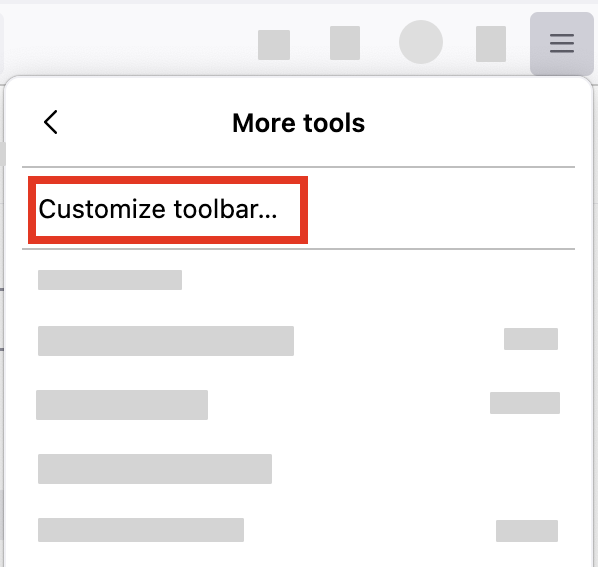
- A special tab will open that allows you to drag and drop items in or out of the overflow menu and the toolbar. If you’re using the keyboard, you can use the Tab and Shift + Tab keys to focus buttons and other customizable items, and then open the context menu to add or remove it from the toolbar.
- Note that some items, such as the menu button, cannot be moved into the overflow menu.
- Feel free to experiment. You can always start over by clicking the Restore Defaults button at the bottom of the screen.
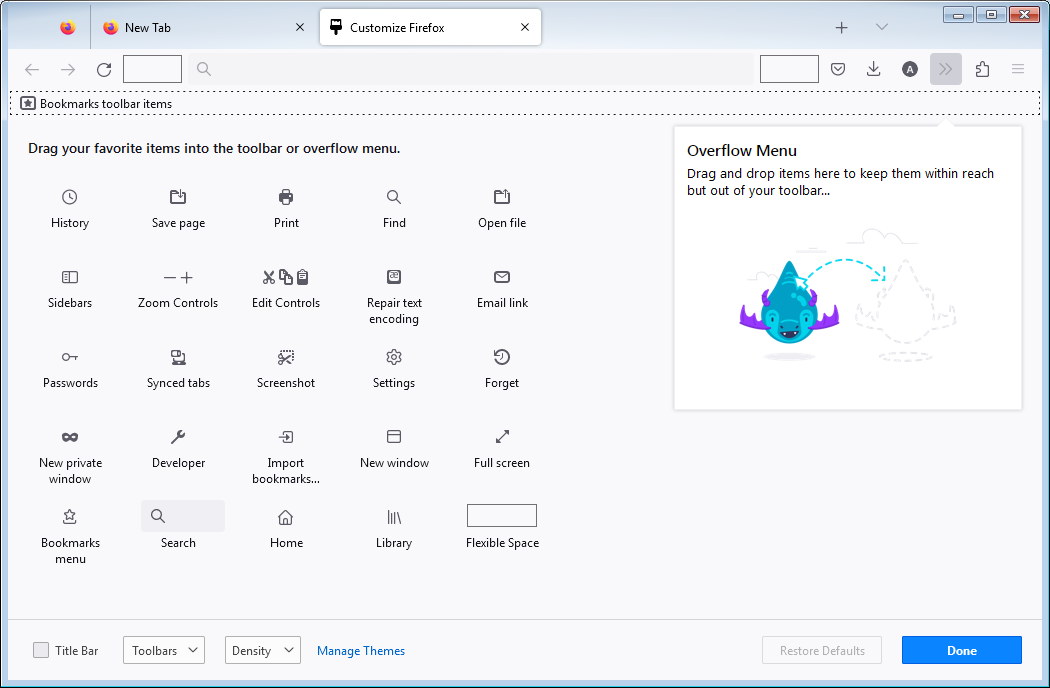 Fx112CustomizeFirefox-win
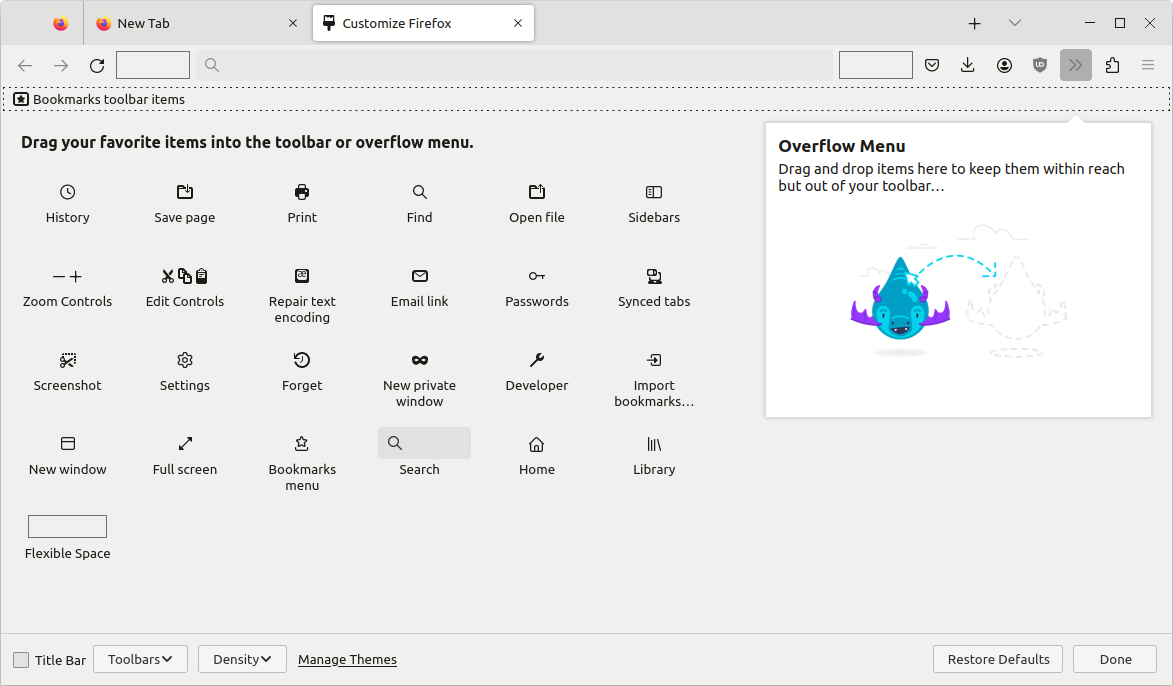 Fx112CustomizeFirefox-linux
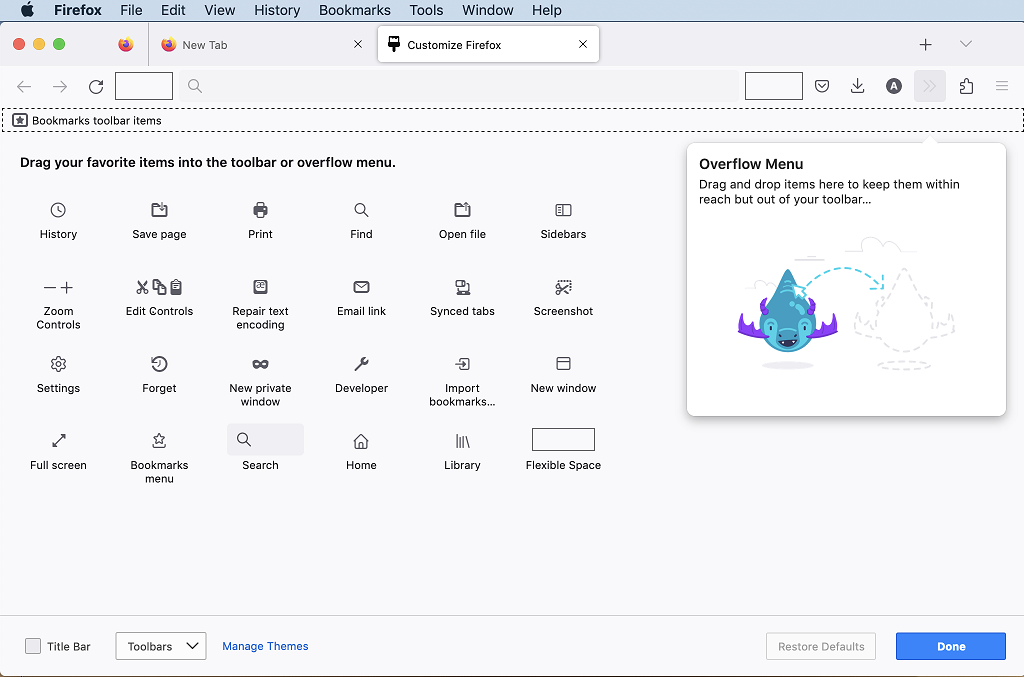 Fx111CustomizeFirefox-mac
-
When you are done, click the Done button or select the ✕ to close. Tip: Another way to open the Customize Firefox tab: Right-clickRight-click (or hold down the Control key while you click) on a blank spot in the tab bar or toolbar and choose from the context menu. You can also go to the menu bar at the top of your screen, If the menu bar is enabled, you can also click, click, and then select the option.
-
If you do not see the Title Bar checkbox or Bookmarks Toolbar dropdown in the Customize toolbar… screen, check if you are in full screen mode (press F11 to exit).
-
Click the menu button
, click and choose- To turn on the Title bar: Put a check mark next to Title Bar in the lower left.
- To turn on the Menu bar or Bookmarks toolbar: Click the dropdown menu at the bottom of the screen and choose the toolbars you want to display.
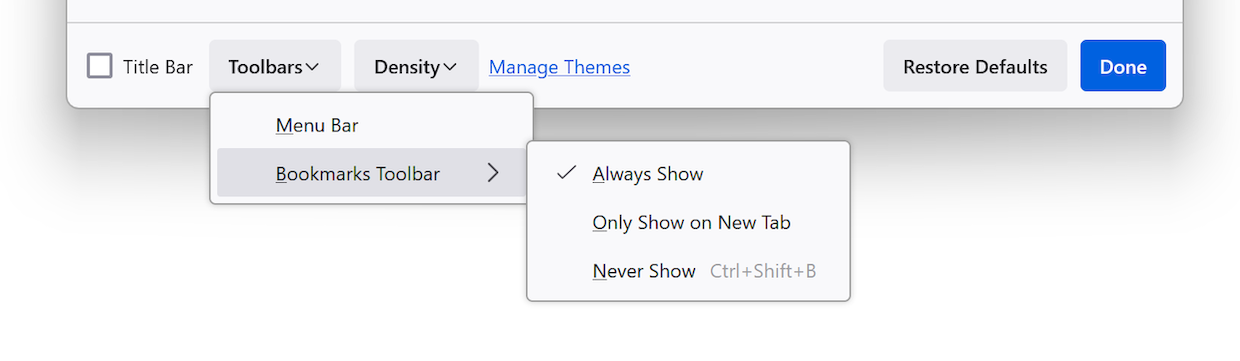 Note: The Bookmarks Toolbar can be set to, or.
- To turn on the Menu bar or Bookmarks toolbar: Click the dropdown menu at the bottom of the screen and choose the toolbars you want to display.
- To turn on the Title bar: Put a check mark next to Title Bar in the lower left.
-
Click the Done button or select the ✕ to close.
-
Click the menu button
, click and choose- To turn on the Title bar: Put a check mark next to Title Bar in the lower left.
- To turn on the Bookmarks toolbar: Click the dropdown menu at the bottom of the screen and select.
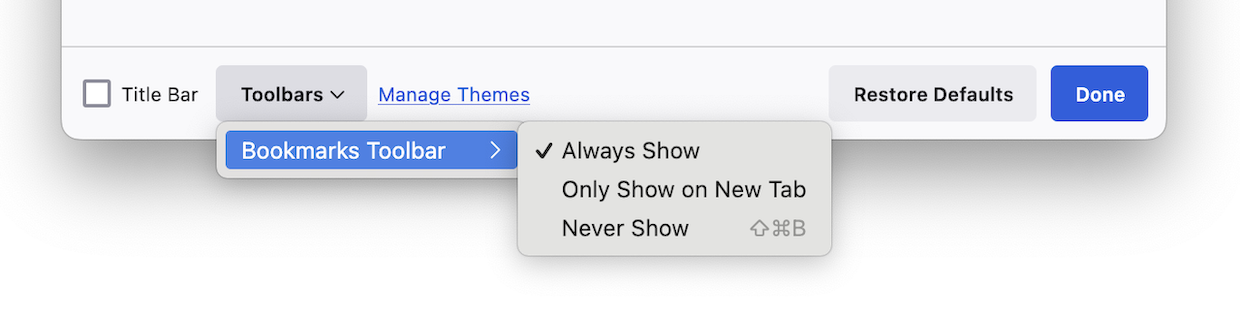 Note: The Bookmarks Toolbar can be set to, or.
- To turn on the Bookmarks toolbar: Click the dropdown menu at the bottom of the screen and select.
- To turn on the Title bar: Put a check mark next to Title Bar in the lower left.
-
Click the Done button or select the ✕ to close.
Note: You can also turn the Bookmarks toolbar on or off from the menu bar at the top of the screen: Click, go down to, and select.
- Click the menu button , click and choose
- To turn on the Title bar: Put a check mark next to Title Bar in the lower left.
- Click the dropdown menu at the bottom of the screen and choose the toolbars you want to display.
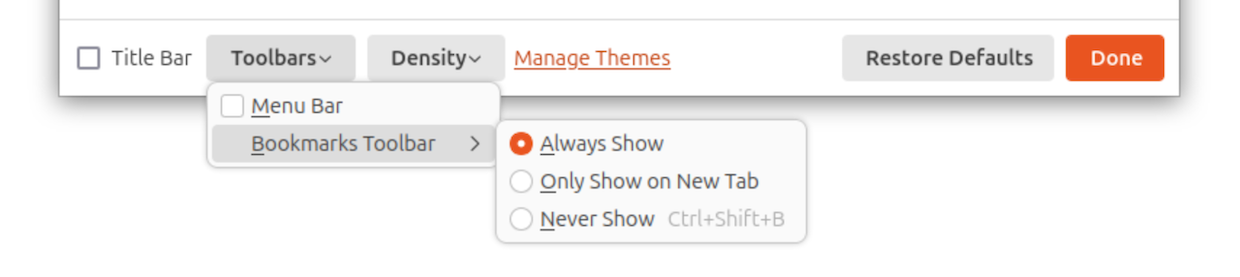 Note: The Bookmarks Toolbar can be set to, or.
 - Click the Done button or select the ✕ to close.
Having problems?
Try restoring the default set of buttons and toolbars by clicking the Restore Defaults button while in customize mode. If that doesn’t help, try these:
- Tabs on bottom: Firefox no longer has a built-in setting; you can restore it using userChrome.css (advanced). See Tabs on bottom.
- Move bookmarks bar to side/top: Only top placement is supported natively; side placement requires add-ons.
- Hide “Share Feedback” icon: Drag it to overflow menu or remove it in Customize Toolbar.
- Restore refresh button: Drag it from the Customize Toolbar palette to the left of the address bar.
- Clear “Recent Bookmarks” list: Right-click a bookmark and choose; there’s no bulk hide option without an add-on.
- Change toolbar font size: Change your system font size or use an extension.
- Toolbar missing entirely: Right-click toolbar area and select the bars you want to display (Menu, Bookmarks, Title).
You can also try the instructions in the resources below:
Share this article: http://mzl.la/1BAQIvu