/ 9 min read
,
Table of Contents
/**
A beginner-friendly tutorial on creating a bookmark content collection in Astro.
*/
My favorite bookmarking service Pocket shut down earlier this month. I’m inclined to think whatever bookmarking service I use gets cursed. First Digg, then Delicious, now Pocket.
My first instinct was to find the next one (to curse;) ). I found Instapaper, created an account, and played around a bit. Then came the sudden realization: I didn’t need another service I could not control. I could simply build a lightweight bookmarking functionality on my very own dev blog!
With an AI assistant at my disposal, I wouldn’t even need a whole weekend to build it out. I ended up building it in less than 3 hours. In this tutorial, I’m laying out the high level steps to save you from falling into a rabbit hole of an overthinking AI.
Astro’s content collections feature is a powerful way to organize and manage your site’s content. If the official documentation feels overwhelming, this guide will walk you through the process step-by-step using a practical example: creating a bookmark content collection to share online articles.
First, ensure you have the @astrojs/content package installed. It’ll likely be already installed. If not, run the following command in your terminal:
npm install @astrojs/contentStep 2: Configure your Astro project
Open your astro.config.mjs file and add the content integration: (if it doesn’t exist already)
import { defineConfig } from 'astro/config';
import content from '@astrojs/content';

export default defineConfig({
  integrations: [content()],
});
Open your content.config.ts file and define your new content collection at the bottom:
Inside this folder, create a schema file to define the structure of your bookmark content:
const bookmark = defineCollection({
  loader: glob({ base: "./src/content/bookmark", pattern: "**/*.{md,mdx}" }),
  schema: baseSchema.extend({
    url: z.string().url(),
    excerpt: z.string(),
    readDate: z
      .string()
      .datetime({ offset: true })
      .transform((val) => new Date(val)),
  }),
});

export const collections = { post, note, bookmark }; // add bookmark to the end of your existing export
Handy functions if you intend to fetch bookmark data in multiple places.
import { type CollectionEntry, getCollection } from "astro:content";

/** get all bookmarks */
export async function getAllBookmarks(): Promise<CollectionEntry<"bookmark">[]> {
    return await getCollection("bookmark");
}

/** groups bookmarks by year (based on readDate), using the year as the key */
export function groupBookmarksByYear(bookmarks: CollectionEntry<"bookmark">[]) {
    return bookmarks.reduce<Record<string, CollectionEntry<"bookmark">[]>>((acc, bookmark) => {
        const year = bookmark.data.readDate.getFullYear();
        if (!acc[year]) {
            acc[year] = [];
        }
        acc[year]?.push(bookmark);
        return acc;
    }, {});
}
Skip if you don’t intend to reuse how you display bookmarks. Here’s my Bookmark component that I use on home and bookmarks pages:
---
import { type CollectionEntry, render } from "astro:content";
import FormattedDate from "@/components/FormattedDate.astro";
import type { HTMLTag, Polymorphic } from "astro/types";

type Props<Tag extends HTMLTag> = Polymorphic<{ as: Tag }> & {
  bookmark: CollectionEntry<"bookmark">;
  isPreview?: boolean | undefined;
};

const { as: Tag = "div", bookmark, isPreview = false } = Astro.props;
const { Content } = await render(bookmark);
---

<article
  class:list={[isPreview && "inline-grid rounded-md bg-blue-50 px-4 py-3 dark:bg-[rgb(33,35,38)]"]}
  data-pagefind-body={isPreview ? false : true}
>
  <Tag class="title" class:list={{ "text-base": isPreview }}>
    {
      isPreview ? (
        <a class="cactus-link" href={\`/bookmarks/${bookmark.id}/\`}>
          {bookmark.data.title}
        </a>
      ) : (
        <>{bookmark.data.title}</>
      )
    }
  </Tag>
  <div class="mb-2 flex flex-wrap items-center gap-2 text-sm">
    <a
      href={bookmark.data.url}
      target="_blank"
      rel="noopener noreferrer"
      class="text-accent hover:underline"
    >
      Read Original →
    </a>
    <FormattedDate
      dateTimeOptions={{
        hour: "2-digit",
        minute: "2-digit",
        year: "2-digit",
        month: "2-digit",
        day: "2-digit",
      }}
      date={bookmark.data.readDate}
    />
  </div>
  {
    !isPreview && (
      <p class="mb-3 text-sm text-gray-600 dark:text-gray-400">{bookmark.data.excerpt}</p>
    )
  }
  {
    !isPreview && (
      <div class="prose prose-sm prose-cactus mt-4 max-w-none [&>p:last-of-type]:mb-0">
        <blockquote>
          <Content />
        </blockquote>
      </div>
    )
  }
</article>
As with the previous step, your markup may be wildly different from mine. Pick the meaty parts and adapt accordingly. As you’ll notice, my site uses Tailwind CSS.
---
import { type CollectionEntry } from "astro:content";
import Pagination from "@/components/Paginator.astro";
import Bookmark from "@/components/bookmark/Bookmark.astro";
import { getAllBookmarks } from "@/data/bookmark";
import PageLayout from "@/layouts/Base.astro";
import type { GetStaticPaths, Page } from "astro";
import { Icon } from "astro-icon/components";

export const getStaticPaths = (async ({ paginate }) => {
  const MAX_BOOKMARKS_PER_PAGE = 10;
  const allBookmarks = await getAllBookmarks();
  // Sort by readDate in reverse chronological order
  const sortedBookmarks = allBookmarks.sort(
    (a, b) => b.data.readDate.getTime() - a.data.readDate.getTime(),
  );
  return paginate(sortedBookmarks, { pageSize: MAX_BOOKMARKS_PER_PAGE });
}) satisfies GetStaticPaths;

interface Props {
  page: Page<CollectionEntry<"bookmark">>;
}

const { page } = Astro.props;

const meta = {
  description: "Read my collection of bookmarks",
  title: "Bookmarks",
};

const paginationProps = {
  ...(page.url.prev && {
    prevUrl: {
      text: "← Previous Page",
      url: page.url.prev,
    },
  }),
  ...(page.url.next && {
    nextUrl: {
      text: "Next Page →",
      url: page.url.next,
    },
  }),
};
---

<PageLayout meta={meta}>
  <section>
    <h1 class="title mb-6 flex items-center gap-3">
      Bookmarks
      <a class="text-accent" href="/bookmarks/rss.xml" target="_blank">
        <span class="sr-only">RSS feed</span>
        <Icon aria-hidden="true" class="h-6 w-6" focusable="false" name="mdi:rss" />
      </a>
    </h1>
    <ul class="mt-6 space-y-8 text-start">
      {
        page.data.map((bookmark) => (
          <li>
            <Bookmark bookmark={bookmark} as="h2" isPreview />
          </li>
        ))
      }
    </ul>
    <Pagination {...paginationProps} />
  </section>
</PageLayout>
---
import { getCollection } from "astro:content";
import Bookmark from "@/components/bookmark/Bookmark.astro";
import PageLayout from "@/layouts/Base.astro";
import type { GetStaticPaths, InferGetStaticPropsType } from "astro";
export const getStaticPaths = (async () => {
const allBookmarks = await getCollection("bookmark");
return allBookmarks.map((bookmark) => ({
params: { slug: bookmark.id },
props: { bookmark },
}));
}) satisfies GetStaticPaths;
export type Props = InferGetStaticPropsType<typeof getStaticPaths>;
const { bookmark } = Astro.props;
const meta = {
description: bookmark.data.excerpt,
title: bookmark.data.title,
};
---
<PageLayout meta={meta}>
<Bookmark as="h1" bookmark={bookmark} />
</PageLayout>Step 8: Integration
Finally, link the pages you’ve created above in your navigation and on your home page.
Optionally, add an RSS feed for your bookmarks:
import { getAllBookmarks } from "@/data/bookmark";
import { siteConfig } from "@/site.config";
import rss from "@astrojs/rss";

export const GET = async () => {
    const bookmarks = await getAllBookmarks();
    const sortedBookmarks = bookmarks.sort((a, b) =>
        b.data.readDate.getTime() - a.data.readDate.getTime()
    );

    return rss({
        title: \`${siteConfig.title} - Bookmarks\`,
        description: "My collection of bookmarks",
        site: import.meta.env.SITE,
        items: sortedBookmarks.map((bookmark) => ({
            title: bookmark.data.title,
            description: bookmark.data.excerpt,
            pubDate: bookmark.data.readDate,
            link: \`bookmarks/${bookmark.id}/\`,
        })),
    });
};
Link it in your page head:
<link href="/bookmarks/rss.xml" title="Bookmarks" rel="alternate" type="application/rss+xml" />Add your bookmark content files in the collection folder. Each file should follow the schema you defined. For example:
---
title: "Your Career Needs a Vision, Not More Goals"
url: "https://alifeengineered.substack.com/p/your-career-needs-a-vision-not-more"
excerpt: "Why you can hit every target and still feel lost. A simple 3-part framework for an intentional life."
readDate: "2025-07-23T10:46:54.789Z"
---

Deep, deep thoughts about vision, goals, and how people commonly confuse them. What beauty of an article! The central concept is similar to Cal Newport's lifestyle-centric planning, but it's nice to revisit it in the context of a software engineer.
Make your life easy by having a script write bookmark markdown for you. The following script takes care of extracting title, description, etc. from a URL to create a new markdown file complete with frontmatter.
Usage:
npm run create-bookmark https://blog.isquaredsoftware.com/2025/06/react-community-2025/ "My complex thoughts about the topic here"The second param (thoughts/commentary) is optional.
const fs = require('fs');
const path = require('path');
const { JSDOM } = require('jsdom');

const FILE_NAME = __filename || path.basename(__filename);
const DIR_NAME = path.dirname(FILE_NAME);

async function fetchPageMetadata(url) {
    try {
        const response = await fetch(url);
        if (!response.ok) {
            throw new Error(\`HTTP error! status: ${response.status}\`);
        }

        const html = await response.text();
        const dom = new JSDOM(html);
        const document = dom.window.document;

        // Extract metadata
        const title =
            document.querySelector('meta[property="og:title"]')?.content ||
            document.querySelector('meta[name="twitter:title"]')?.content ||
            document.querySelector('title')?.textContent ||
            'Untitled';

        const description =
            document.querySelector('meta[property="og:description"]')?.content ||
            document.querySelector('meta[name="twitter:description"]')?.content ||
            document.querySelector('meta[name="description"]')?.content ||
            '';

        const author =
            document.querySelector('meta[name="author"]')?.content ||
            document.querySelector('meta[property="article:author"]')?.content ||
            '';

        const siteName =
            document.querySelector('meta[property="og:site_name"]')?.content ||
            new URL(url).hostname;

        return {
            title: title.trim(),
            description: description.trim(),
            author: author.trim(),
            siteName: siteName.trim()
        };
    } catch (error) {
        console.error('Error fetching metadata:', error.message);
        return {
            title: 'Untitled',
            description: '',
            author: '',
            siteName: new URL(url).hostname
        };
    }
}

function createSlug(title) {
    return title
        .toLowerCase()
        .replace(/[^\w\s-]/g, '') // Remove special characters
        .replace(/\s+/g, '-') // Replace spaces with hyphens
        .replace(/-+/g, '-') // Replace multiple hyphens with single
        .trim();
}

function generateFrontmatter(url, metadata, thoughts) {
    const now = new Date();
    const readDate = now.toISOString();

    // Clean up title and description for YAML
    const cleanTitle = metadata.title.replace(/"/g, '\\"');
    const cleanDescription = metadata.description.replace(/"/g, '\\"');

    const boilerplateThoughts = \`<!-- Add your notes about this bookmark here -->

${metadata.author ? \`**Author:** ${metadata.author}\` : ''}
${metadata.siteName ? \`**Source:** ${metadata.siteName}\` : ''}\`;
    const thoughtsToAppend = thoughts ?? boilerplateThoughts;

    return \`---
title: "${cleanTitle}"
url: "${url}"
excerpt: "${cleanDescription}"
readDate: "${readDate}"
---

${thoughtsToAppend}
\`;
}

async function createBookmark(url, thoughts) {
    try {
        // Validate URL
        new URL(url);

        console.log(\`Fetching metadata for: ${url}\`);
        const metadata = await fetchPageMetadata(url);

        // Create filename from title
        const slug = createSlug(metadata.title);
        const timestamp = new Date().toISOString().split('T')[0]; // YYYY-MM-DD
        const filename = \`${timestamp}-${slug}.md\`;

        // Create bookmark content
        const content = generateFrontmatter(url, metadata, thoughts);

        // Ensure bookmark directory exists
        const bookmarkDir = path.join(DIR_NAME, '..', 'src', 'content', 'bookmark');
        if (!fs.existsSync(bookmarkDir)) {
            fs.mkdirSync(bookmarkDir, { recursive: true });
        }

        // Write file
        const filepath = path.join(bookmarkDir, filename);

        if (fs.existsSync(filepath)) {
            console.log(\`Warning: File ${filename} already exists. Overwriting...\`);
        }

        fs.writeFileSync(filepath, content);

        console.log(\`✅ Bookmark created successfully!\`);
        console.log(\`📁 File: ${filepath}\`);
        console.log(\`📝 Title: ${metadata.title}\`);
        console.log(\`🔗 URL: ${url}\`);

        return filepath;
    } catch (error) {
        console.error('❌ Error creating bookmark:', error.message);
        process.exit(1);
    }
}

// Main execution
const url = process.argv[2];
const thoughts = process.argv[3]; // optional

if (!url) {
    console.error('❌ Please provide a URL as an argument');
    console.log('Usage: npm run create-bookmark <url>');
    process.exit(1);
}

createBookmark(url, thoughts);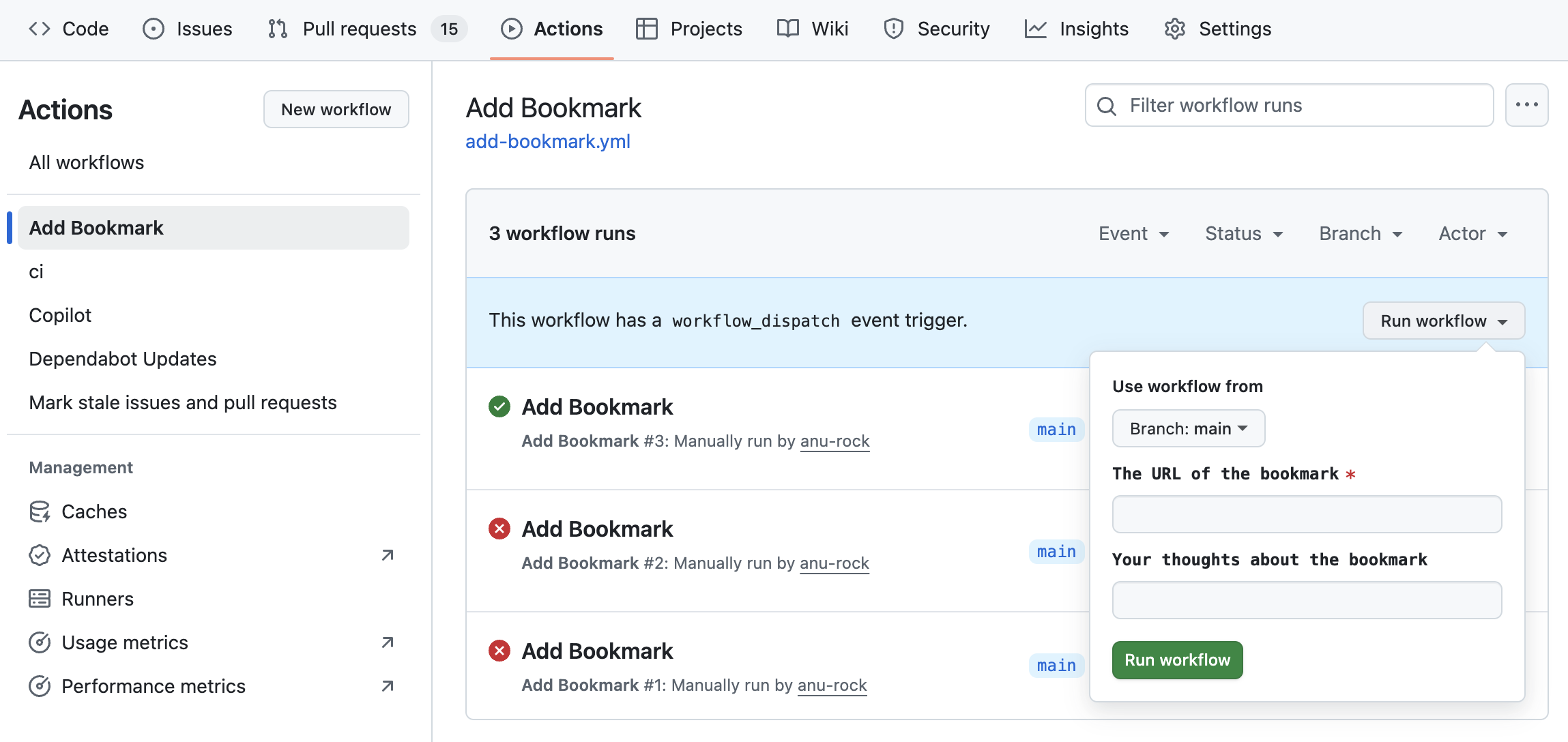
A neat hack to have a UI to add new bookmarks. The npm script we created above is a prerequisite.
name: Add Bookmark

on:
  workflow_dispatch:
    inputs:
      url:
        description: "The URL of the bookmark"
        required: true
        type: string
      thoughts:
        description: "Your thoughts about the bookmark"
        required: false
        type: string

jobs:
  add-bookmark:
    runs-on: ubuntu-latest

    permissions:
      contents: write

    # Restrict workflow to specific users
    if: github.actor == 'anu-rock'

    steps:
      # Step 1: Checkout the repository
      - name: Checkout repository
        uses: actions/checkout@v3

      # Step 2: Set up Node.js
      - name: Set up Node.js
        uses: actions/setup-node@v3
        with:
          node-version: "22"

      # Step 3: Install dependencies
      - name: Install dependencies
        run: npm install

      # Step 4: Run the create-bookmark script
      - name: Create bookmark
        run: npm run create-bookmark "${{ github.event.inputs.url }}" "${{ github.event.inputs.thoughts }}"

      # Step 5: Commit and push changes
      - name: Commit and push changes
        run: |
          git config --global user.name "AnuRock"
          git config --global user.email "echo@anurock.dev"
          git add .
          git commit -m "Add bookmark"
          git push
Conclusion
That’s it! You’ve successfully added a bookmark content collection in Astro. This tutorial simplifies the process and provides a practical example. For more advanced features, refer to the official documentation.
Happy coding!